
Tag: Home Service Marketing
How to Add Categories, Subcategories, & Services to Your Google Business Profile
Optimizing your Google Business Profile (GBP) by adding relevant categories, subcategories, and services is essential for home-service businesses aiming to enhance their online visibility and attract more customers. In the “How to Add Categories, Subcategories, & Services to Your Google Business Profile” video, you learn effective strategies to categorize your business accurately. This comprehensive guide will expand on those instructions, providing you with detailed steps, best practices, and additional insights to ensure your GBP is fully optimized for maximum impact.
Why Proper Categorization Matters
Accurate categorization of your business on Google is fundamental for several reasons:
Enhanced Visibility in Search Results
Choosing the right categories ensures that your business appears in relevant search queries. When potential customers search for specific services you offer, Google matches these queries with your GBP categories, increasing the likelihood of your business being displayed prominently.
Improved Local SEO
Google uses your business categories to understand what your business does, which directly influences your local SEO rankings. Proper categorization helps Google index your business correctly, making it easier for customers in your service areas to find you.
Targeted Customer Reach
By selecting specific subcategories, you can target niche markets within your industry. This precision helps attract customers who are specifically looking for the services you offer, improving the quality of leads and increasing conversion rates.
Step-by-Step Guide to Adding Categories, Subcategories, & Services
Follow these steps to effectively add and manage categories, subcategories, and services in your Google Business Profile.
Step 1: Access Your Google Business Profile
- Sign In to Your GBP Account
- Navigate to Google Business Profile and click on “Manage now.”
- Log in using the Gmail account associated with your business profile. Ensure you have administrative access to make changes.
- Select the Appropriate Business Profile
- If you manage multiple business profiles, select the one you want to update. This ensures you’re working on the correct profile.
Step 2: Navigate to the Categories Section
- Open the Profile Dashboard
- Once signed in, you’ll be directed to your business’s dashboard. Here, you can manage various aspects of your profile, including information, photos, and reviews.
- Locate the “Categories” Tab
- In the dashboard menu, find and click on the “Categories” tab. This section allows you to add and manage the categories and services your business offers.
Step 3: Add Primary and Secondary Categories
- Add Primary Category
- Click on the “Add Primary Category” button.
- Enter the main category that best describes your business. For example, if you’re a plumbing company, select “Plumber.”
- Add Secondary Categories
- You can add up to nine secondary categories. These should represent other services or specialties your business offers.
- For instance, a plumbing company might add secondary categories like “Drain Cleaning,” “Leak Detection,” or “Bathroom Remodeler.”
Step 4: Add Subcategories and Specific Services
- Use a Tool for Recommendations
- Utilize tools like GMB Everywhere to get recommendations for relevant categories and subcategories. This ensures you’re covering all aspects of your services without overloading your profile.
- Select Relevant Subcategories
- Within each category, add subcategories that are specific to the services you provide. For example, under “Bathroom Remodeler,” you might add “Bathtub Reglazing” or “Grab Bar Installation” if these are services you offer.
- Avoid Irrelevant Subcategories
- Only add subcategories that are directly related to your business operations. Adding irrelevant subcategories can confuse customers and dilute your profile’s effectiveness.
Step 5: Add Custom Services
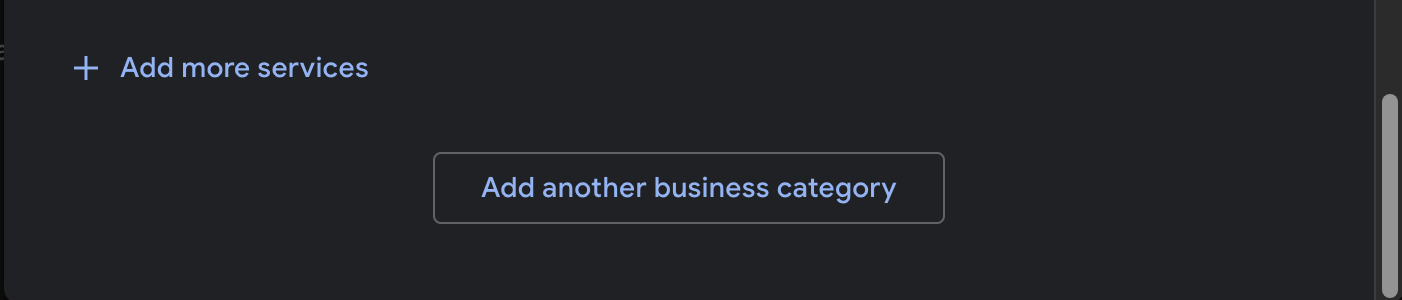
- Click on “Add More Services”
- If you offer services that are not listed in the recommended categories, click on the “Add More Services” button.
- Enter Custom Service Details
- Input the name and description of the custom service. For example, “Eco-Friendly Plumbing Solutions” or “24/7 Emergency Plumbing Services.”
- Save the Custom Service
- After entering the details, click “Save” to add the custom service to your profile.
Step 6: Review and Save Changes
- Double-Check Your Entries
- Ensure that all categories, subcategories, and services accurately reflect your business offerings. Verify that there are no spelling mistakes or incorrect entries.
- Save All Changes
- Click the “Save” button to apply all your updates to your Google Business Profile.
Best Practices for Managing Categories, Subcategories, & Services
Implementing best practices ensures that your GBP categories and services are optimized for maximum visibility and effectiveness.
Be Specific and Accurate
- Choose Precise Categories: Select categories that closely match your primary business activities. Avoid overly broad categories that can dilute your profile’s relevance.
- Use Exact Terms: If Google offers a specific category that matches your service, use it. For example, “Emergency Plumbing Services” is more specific and effective than just “Plumber.”
Utilize Recommended Tools
- Leverage Tools like GMB Everywhere: Use tools to discover additional relevant categories and subcategories. These tools can provide insights into what competitors are using and suggest optimal categories for your business.
Regularly Update Your Profile
- Keep Information Current: As your business evolves, update your categories and services to reflect new offerings or changes in your operations.
- Add Seasonal Services: Incorporate seasonal services or promotions into your categories to capture timely customer interest.
Optimize Service Descriptions
- Clear and Concise: Write clear and concise descriptions for each service. Highlight the benefits and unique aspects of each service to attract more customers.
- Incorporate Keywords: Use relevant keywords naturally within your service descriptions to improve local SEO and search visibility.
Avoid Overloading with Irrelevant Categories
- Stay Relevant: Only add categories and subcategories that are relevant to your business. Irrelevant categories can confuse customers and negatively impact your SEO.
- Maintain Focus: Focus on the core services that define your business. This helps in maintaining a strong and focused online presence.
Consistent Branding
- Align with Website Content: Ensure that the categories and services listed in your GBP align with the content on your website. Consistency across platforms reinforces your brand and improves trust.
- Use High-Quality Images: Complement your categories with high-quality images that represent each service. Visual content enhances the appeal and credibility of your profile.
Common Mistakes to Avoid
Avoiding common pitfalls can ensure that your GBP remains effective and continues to drive quality leads.
Adding Irrelevant Subcategories
- Impact: Adding subcategories that do not reflect your actual services can mislead customers and harm your SEO rankings.
- Solution: Only include subcategories that are directly related to the services you offer. Regularly review and update your subcategories to maintain relevance.
Overcomplicating Categories
- Impact: Having too many categories can dilute the focus of your profile and make it harder for customers to find what they’re looking for.
- Solution: Limit the number of categories to those that are most relevant and impactful. Focus on quality over quantity.
Neglecting Regular Updates
- Impact: An outdated profile can lead to missed opportunities and reduce customer trust.
- Solution: Schedule regular reviews of your GBP to ensure that all information is current and accurately reflects your business offerings.
Ignoring Category Recommendations
- Impact: Missing out on optimal categories can limit your visibility in search results.
- Solution: Utilize recommended tools and guidelines to choose the best categories for your business. Stay informed about new categories that Google may introduce.
Inconsistent Information Across Platforms
- Impact: Inconsistencies between your GBP and other online platforms can confuse customers and harm your SEO.
- Solution: Ensure that your business hours, services, and other key information are consistent across all platforms, including your website and social media profiles.
Frequently Asked Questions
How Many Categories Can I Add to My Google Business Profile?
You can add up to nine categories to your GBP, including one primary category and up to eight secondary categories. Focus on selecting the most relevant and impactful categories to maximize your profile’s effectiveness.
Can I Add Custom Categories if They Are Not Listed?
Yes, you can add custom services to your GBP even if they are not listed in Google’s recommended categories. Click on “Add More Services” and enter the details of the custom service to include it in your profile.
How Often Should I Update My Categories and Services?
Regularly review and update your categories and services at least once a month or whenever there are significant changes in your business operations. Keeping your profile current ensures that it remains relevant and effective in attracting customers.
What Tools Can Help Me Choose the Right Categories?
Tools like GMB Everywhere can provide recommendations for categories and subcategories based on your business type. These tools analyze competitor profiles and suggest optimal categories to enhance your GBP.
What Should I Do If a Category Change is Disapproved by Google?
If Google disapproves a category change, review Google’s category guidelines to ensure compliance. Make sure the new category accurately represents your business services, and try submitting the change again with the necessary adjustments.
Maximizing the Impact of Categories, Subcategories, & Services
To fully leverage the benefits of adding categories, subcategories, and services to your GBP, integrate these strategies into your broader marketing and operational plans.
Align with Your Marketing Strategy
- Targeted Campaigns: Use your GBP categories to support targeted marketing campaigns. Highlight specific services in your ads and promotions that align with your GBP categories.
- Content Marketing: Create blog posts, social media content, and other marketing materials that emphasize the services listed in your GBP. This reinforces your expertise and improves SEO.
Enhance Customer Engagement
- Detailed Service Pages: Link your GBP services to detailed service pages on your website. This provides customers with more information and improves the SEO performance of your website.
- Interactive Content: Use interactive content like videos and infographics to showcase your services. Visual content can engage customers and provide a better understanding of your offerings.
Monitor and Analyze Performance
- Use Analytics Tools: Leverage Google Analytics and GBP insights to monitor how different categories and services are performing. Identify which services generate the most leads and optimize your offerings accordingly.
- Adjust Based on Data: Use performance data to refine your categories and services. Focus on high-performing areas and consider removing or adjusting categories that are underperforming.
Foster Team Collaboration
- Training and Guidelines: Ensure that all team members understand the importance of accurate categorization. Provide training on how to manage and update categories and services in the GBP.
- Consistent Updates: Encourage team members to regularly update the GBP with new services, photos, and other relevant information. Consistency ensures that your profile remains dynamic and engaging.
Leverage Customer Feedback
- Incorporate Reviews: Use customer reviews to identify popular services and areas for improvement. Highlight these services in your GBP categories to attract more customers.
- Adjust Services Based on Demand: Adapt your service offerings based on customer feedback and market demand. Use this information to add or refine categories and services in your GBP.
Conclusion
Effectively adding categories, subcategories, and services to your Google Business Profile is a powerful strategy for home-service businesses seeking to enhance their online presence and attract more customers. By following the step-by-step guide provided in this post, implementing best practices, and avoiding common mistakes, you can ensure that your GBP is fully optimized for maximum visibility and effectiveness. Proper categorization not only improves your local SEO but also helps potential customers find the exact services they need, driving more high-quality leads and fostering business growth. Regularly review and update your categories to stay aligned with your business goals and market trends, ensuring sustained success in a competitive landscape.
How to Change Business Hours & Ad Schedule in Google Local Services Ads
Managing your business hours and ad schedule in Google Local Services Ads (LSA) is essential for home-service businesses aiming to optimize their online presence and attract the right customers. In the “How to Change Business Hours & Ad Schedule in Google Local Services Ads” video, you learn how to effectively adjust your operating hours and ad timings to ensure that your business remains visible and responsive during peak times. This comprehensive guide will expand on those instructions, providing you with detailed steps, best practices, and additional insights to help you manage your business hours and ad schedule efficiently.
Why Managing Business Hours & Ad Schedule Matters
Properly managing your business hours and ad schedule in Google Local Services Ads is crucial for several reasons:
Enhance Customer Experience
Ensuring that your business hours are accurately reflected in your LSA ensures that customers can reach you when they need your services. This alignment prevents frustration from missed calls and increases the likelihood of converting leads into customers.
Optimize Ad Performance
Running your ads during hours when your business is operational maximizes the effectiveness of your advertising spend. It ensures that leads generated by your ads can be promptly addressed, improving conversion rates and return on investment (ROI).
Improve Local SEO
Google considers user engagement and responsiveness as factors in local SEO rankings. Accurate business hours and an optimized ad schedule signal to Google that your business is active and reliable, potentially boosting your visibility in local search results.
Step-by-Step Guide to Changing Business Hours & Ad Schedule
Follow these steps to effectively update your business hours and ad schedule in your Google Local Services Ads account.
Step 1: Access Your Google Local Services Ads Account
- Sign In to Your Account
- Navigate to Google Local Services Ads and click on “Sign in” at the top right corner.
- Enter the Gmail account credentials associated with your LSA account.
- Select the Correct Business Profile
- If you manage multiple business profiles, ensure you select the one you want to update. This guarantees that changes are made to the appropriate profile.
Step 2: Navigate to the Profile and Budget Tab
- Open the Dashboard
- Once signed in, you’ll be directed to your LSA dashboard where you can manage various aspects of your ads and business information.
- Locate the “Profile and Budget” Tab
- In the dashboard menu, find and click on the “Profile and Budget” tab. This section allows you to manage your business information, advertising budget, and other settings.
Step 3: Update Business Hours
- Scroll Down to the Business Hours Section
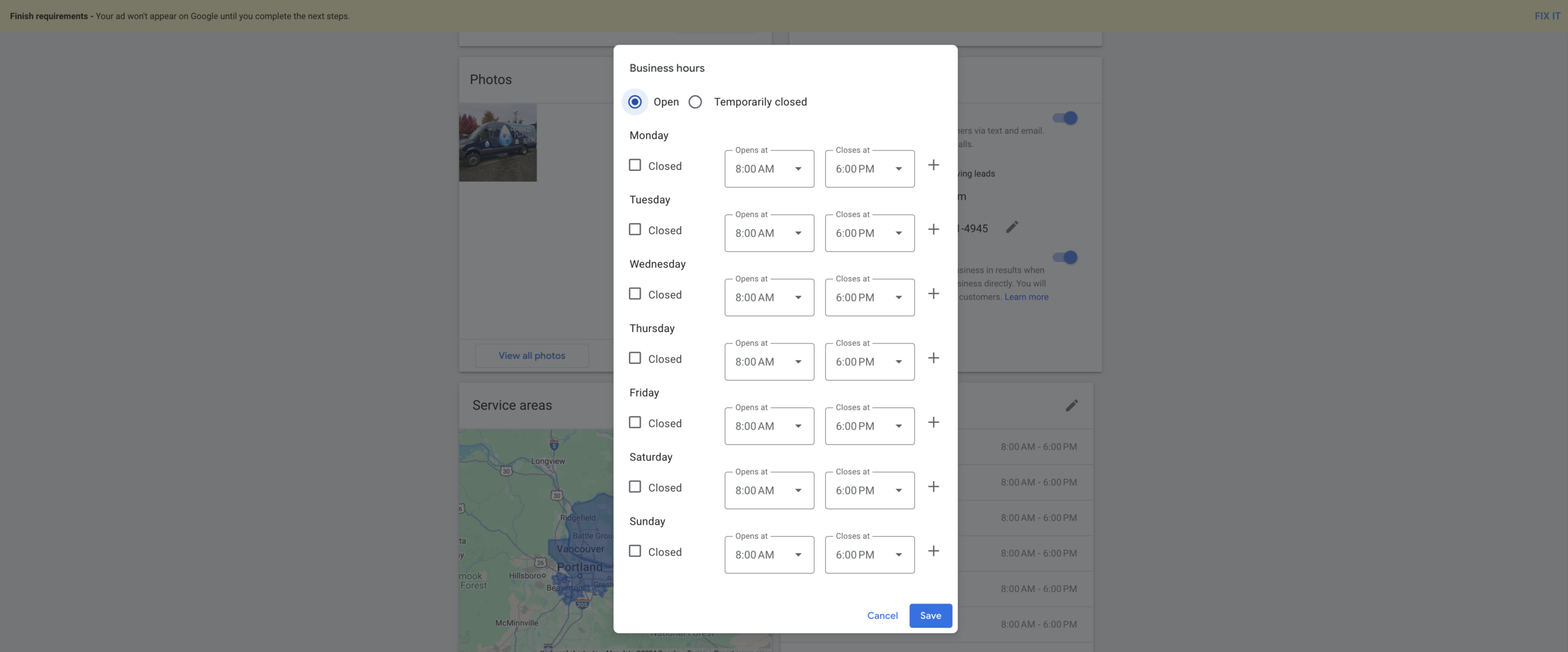
- Within the “Profile and Budget” tab, scroll down until you find the “Business Hours” section. This area displays your current operating hours.
- Click on “Edit Business Hours”
- Click the “Edit” button to modify your business hours. Ensure that these hours match those on your Google Business Profile (GBP) to maintain consistency.
- Set Your Operating Hours
- Enter your standard business hours. For example, if your business operates from 8 AM to 6 PM, input these times accurately.
- Temporary Closures: If your business will be temporarily closed (e.g., holidays or maintenance), use the “Temporary Close” option to inform customers accordingly.
- Save Your Changes
- After updating your hours, click “Save” to apply the changes to your LSA account.
Step 4: Adjust the Ad Schedule
- Locate the Ad Schedule Section
- Still within the “Profile and Budget” tab, find the “Ad Schedule” section. This feature allows you to specify when your ads should run.
- Edit the Ad Schedule
- Click on “Edit Ad Schedule” to customize the times and days your ads will be active.
- Match Business Hours: Ideally, set your ad schedule to align with your business hours. This ensures that leads generated by your ads can be promptly addressed.
- Custom Scheduling: If you want your ads to run outside of standard business hours for specific reasons (e.g., capturing early morning or late evening customers), adjust the schedule accordingly.
- Save the Ad Schedule
- Once you’ve configured the desired ad timings, click “Save” to implement the new schedule.
Step 5: Verify Your Changes
- Review Updated Settings
- After saving, review your business hours and ad schedule to ensure they are correctly set.
- Consistency Check: Confirm that your business hours in LSA match those in your GBP to avoid confusion and enhance customer trust.
- Monitor Ad Performance
- Keep an eye on your ad performance metrics to assess the impact of the changes. Look for improvements in lead generation and conversion rates.
Best Practices for Managing Business Hours & Ad Schedule
Implementing best practices ensures that your business hours and ad schedule are optimized for maximum effectiveness.
Ensure Consistency Across Platforms
- Uniform Hours: Make sure that your business hours are consistent across all platforms, including GBP, LSA, your website, and social media profiles. Inconsistencies can confuse customers and negatively impact your SEO.
- Centralized Management: Use a centralized system or calendar to manage and update your business hours across all platforms simultaneously.
Optimize for Customer Behavior
- Analyze Peak Times: Use analytics tools to identify when your customers are most active and schedule your ads to run during these peak periods.
- Flexible Scheduling: Adjust your ad schedule based on seasonal trends or special events to capture increased demand during specific times.
Keep Your Hours Updated
- Regular Audits: Periodically review your business hours and ad schedule to ensure they remain accurate and reflect any changes in your operations.
- Prompt Updates: Update your hours immediately if there are any changes, such as extended hours for a special promotion or reduced hours during holidays.
Utilize Temporary Closures Effectively
- Inform Customers: Use the temporary closure feature to inform customers about upcoming closures. This transparency helps manage customer expectations and maintains trust.
- Plan Ahead: Schedule temporary closures in advance to ensure that your ad schedule and business hours reflect the changes accurately.
Leverage Automation Tools
- Scheduling Tools: Use automation tools to manage your ad schedule efficiently. Tools like Google Ads Scheduler can help you plan and automate your ad timings based on your business needs.
- Integration with CRM: Integrate your ad scheduling with your Customer Relationship Management (CRM) system to streamline lead management and follow-ups.
Common Mistakes to Avoid
Avoiding these common mistakes can ensure that your business hours and ad schedule management is effective and beneficial to your business.
Mismatching Business Hours
- Impact: Inconsistent business hours across platforms can lead to customer confusion and missed opportunities.
- Solution: Regularly audit your business hours to ensure they are consistent across all platforms, including GBP and LSA.
Overcomplicating the Ad Schedule
- Impact: Creating an overly complex ad schedule can lead to inefficiencies and wasted ad spend.
- Solution: Keep your ad schedule simple and aligned with your core business hours, adjusting only for specific needs or trends.
Ignoring Customer Feedback
- Impact: Failing to adjust your business hours and ad schedule based on customer behavior can result in lost leads and reduced customer satisfaction.
- Solution: Actively monitor customer interactions and feedback to inform adjustments to your business hours and ad schedule.
Neglecting to Update Temporary Closures
- Impact: Not updating temporary closures can result in customer frustration and missed appointments.
- Solution: Use the temporary closure feature to inform customers about any short-term changes in your operating hours.
Overlooking Mobile Optimization
- Impact: Many customers access your business information via mobile devices. If your business hours and ad schedule are not optimized for mobile, you may miss out on potential leads.
- Solution: Ensure that your business hours and ad schedule are clearly visible and easily accessible on mobile devices.
Frequently Asked Questions
How Do I Ensure My Business Hours in LSA Match My Google Business Profile?
To ensure consistency, always update your business hours in your Google Business Profile first. Then, replicate the same hours in your Google Local Services Ads account by following the steps outlined in this guide.
Can I Set Different Business Hours for Different Days?
Yes, you can set specific business hours for each day of the week in your Google Local Services Ads account. This flexibility allows you to accommodate varying customer demands and operational needs.
What Should I Do If I Receive Leads Outside My Business Hours?
If you receive leads outside your set business hours, consider adjusting your ad schedule to include additional times when you can respond. Alternatively, set up automated responses to inform customers when you will be available to assist them.
How Often Should I Review and Update My Ad Schedule?
It’s recommended to review your ad schedule at least once a month or whenever there are significant changes in your business operations. Regular reviews help ensure that your ad schedule remains aligned with your business needs and customer behavior.
Can I Temporarily Disable My Ads?
Yes, you can temporarily disable your ads by pausing your campaign in the Google Local Services Ads dashboard. This is useful during periods of temporary closures or significant operational changes.
Maximizing the Impact of Business Hours & Ad Schedule Management
To fully leverage the benefits of managing your business hours and ad schedule in Google Local Services Ads, integrate these strategies into your broader marketing and operational plans.
Align with Marketing Campaigns
- Seasonal Promotions: Adjust your ad schedule to coincide with seasonal promotions or special events. For example, extend your business hours and ad schedule during holiday seasons when demand may increase.
- New Service Launches: Promote new services by ensuring your ad schedule aligns with launch events or peak interest times.
Coordinate with Offline Operations
- Staff Scheduling: Ensure that your staff schedule aligns with your business hours and ad schedule to handle incoming leads efficiently.
- Customer Support: Provide adequate customer support during your advertised hours to maximize lead conversion and customer satisfaction.
Utilize Analytics for Continuous Improvement
- Monitor Performance Metrics: Use Google’s analytics tools to track the performance of your ads based on different business hours and ad schedules. Identify trends and adjust your strategies accordingly.
- A/B Testing: Experiment with different ad schedules to determine which timings yield the highest conversion rates. Use A/B testing to find the optimal schedule for your business.
Foster Communication Within Your Team
- Internal Coordination: Ensure that all team members are aware of your business hours and ad schedule. This coordination helps maintain consistency in customer interactions and service delivery.
- Feedback Loop: Create a feedback loop where team members can report on lead quality and conversion rates based on different ad schedules. Use this feedback to refine your strategies.
Enhance Customer Engagement
- Personalized Communication: Use the information from your ad schedule to personalize customer communications. For example, follow up on leads promptly during your active hours to increase conversion rates.
- Customer Convenience: Offer flexible booking options that align with your business hours, making it easier for customers to schedule services at their convenience.
Conclusion
Effectively managing your business hours and ad schedule in Google Local Services Ads is a powerful strategy for home-service businesses seeking to optimize their online presence and attract the right customers. By ensuring that your business hours are consistent across all platforms and aligning your ad schedule with your operational capabilities, you can enhance customer experience, improve ad performance, and boost your local SEO. Follow the step-by-step guide provided in this post, implement best practices, and avoid common mistakes to maximize the benefits of your Google Local Services Ads. Regularly review and adjust your settings to stay aligned with your business goals and market trends, ensuring sustained growth and success in a competitive landscape.
How to Use Google Business Profile Products if You’re a Home-Service Business
If you’re a home-service business owner, understanding how to use Google Business Profile products can significantly enhance your online presence and attract more customers. The How to Use Google Business Profile Products if You’re a Home-Service Business video provides a straightforward guide on leveraging this feature effectively. This comprehensive blog post will delve deeper into those instructions, offering additional insights and best practices tailored specifically for home-service businesses like plumbing, electrical, landscaping, and more.
Why Google Business Profile Products Matter for Home-Service Businesses
Google Business Profile (GBP) products allow businesses to showcase their offerings directly on their Google listing. For home-service businesses, this feature can bridge the gap between offering services and providing detailed information about those services, making it easier for potential customers to understand what you offer and how you can help them.
Enhance Visibility and Credibility
Adding products to your GBP can increase your visibility in local search results. When potential customers search for services you offer, having detailed product listings can help your business stand out from competitors. It also adds a layer of credibility, showing that you are organized and transparent about your services.
Improve Customer Experience
By listing your services as products, you provide potential customers with clear, concise information about what you offer. This can help them make informed decisions without needing to visit your website, enhancing their overall experience and increasing the likelihood of them choosing your business.
Boost Local SEO
Google considers various factors when ranking businesses in local search results, and having a well-maintained GBP with detailed product listings can positively impact your local SEO. This means your business is more likely to appear at the top of search results when customers look for services you provide in your area.
Step-by-Step Guide to Adding Products to Your Google Business Profile
The process of adding products to your GBP is simple and can be done in just a few steps. Here’s a detailed guide based on the methods shown in the video, supplemented with additional tips to ensure you make the most out of this feature.
Step 1: Access Your Google Business Profile
- Sign In to Your GBP Account
- Go to Google Business Profile and sign in using the Gmail account associated with your business profile. Ensure you have administrative access to manage your profile effectively.
- Select the Appropriate Business Profile
- If you manage multiple business profiles, select the one for which you want to add products. This ensures you’re updating the correct profile with relevant information.
Step 2: Navigate to the Products Section
- Locate the “Products” Tab
- In your GBP dashboard, find the “Products” section. This is where you can manage all the products or services you offer.
- Click on “Add Product”
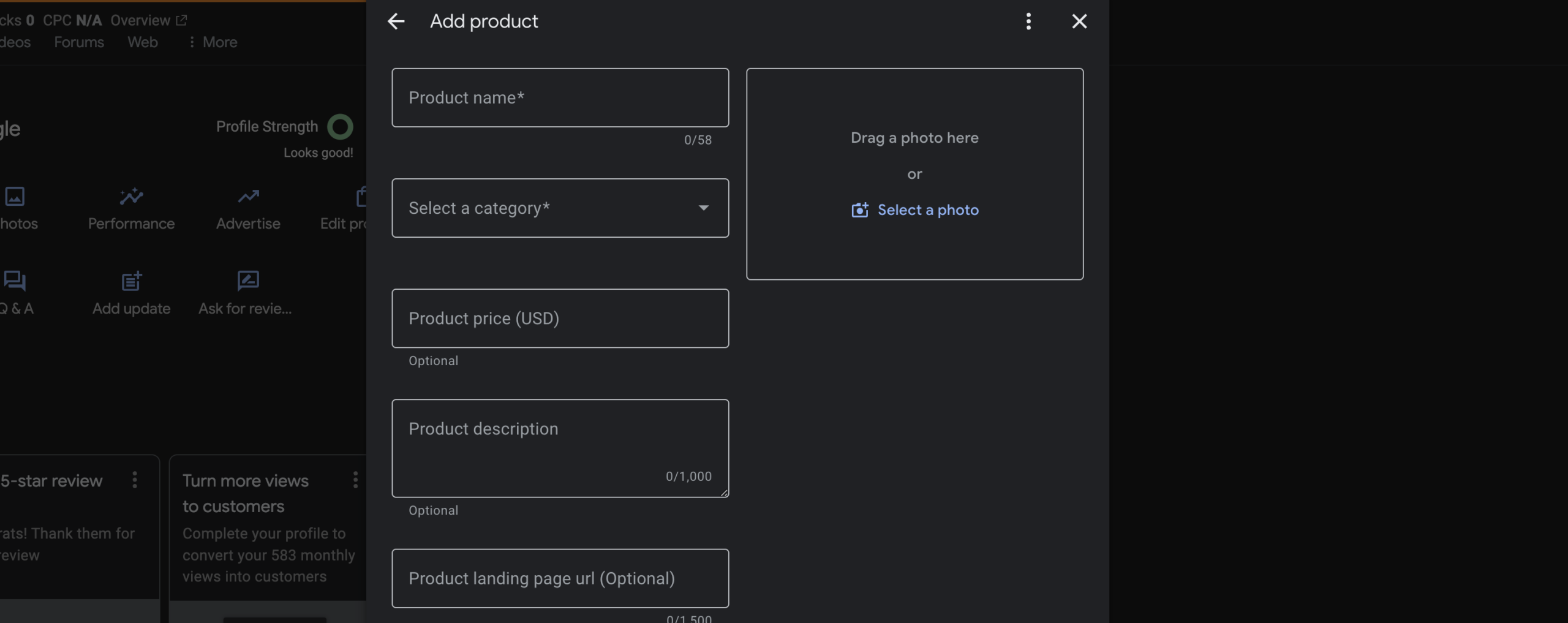
- Initiate the process by clicking the “Add Product” button. This will open a form where you can input detailed information about the service you want to list.
Step 3: Create a New Product Listing
- Choose a Category for Your Service
- Start by creating a new category that best fits the service you’re offering. For example, if you’re a plumbing business, you might create a category called “Plumbing.”
- Name Your Service
- Enter a clear and descriptive name for your service, such as “Plumbing Repair.” If you offer specialized services, consider being more specific, like “Emergency Plumbing Repair” or “Residential Plumbing Services.”
- Add a Detailed Description
- Provide a concise and informative description of the service. Explain what the service entails, its benefits, and any unique selling points. For example:“Our Plumbing Repair service ensures that all your plumbing issues are addressed promptly and efficiently. From fixing leaks to repairing pipes, our experienced technicians are equipped to handle all types of plumbing problems, ensuring your home remains safe and functional.”
- Link to the Relevant Service Page on Your Website
- It’s crucial to link the product to the corresponding service page on your website. This not only drives traffic to your site but also provides customers with more detailed information about the service.For example, if you’re adding “Plumbing Repair in Portland, Oregon,” link it to your dedicated service page: Plumbing Repair in Portland, Oregon.
- Add High-Quality Images
- Upload clear and relevant images that represent the service. While the video suggests using logos, consider using photos that showcase your team in action, before-and-after shots of completed work, or other visuals that highlight the quality of your services.
Step 4: Customize and Publish Your Product
- Optimize Image Resolution
- Google recommends a resolution of 720 x 720 pixels for product images to ensure they display correctly across all devices. Use tools like Canva to create or resize your images accordingly.
- Review and Edit Your Listing
- Double-check all the information you’ve entered to ensure accuracy and professionalism. Make sure the descriptions are free of errors and that the images are appropriately placed and clear.
- Publish Your Product
- Once you’re satisfied with the listing, click “Post” to publish it on your GBP. Repeat the process for each service you want to add, ensuring all your offerings are well-represented.
Best Practices for Using Google Business Profile Products
To maximize the effectiveness of your GBP products, follow these best practices tailored for home-service businesses.
Be Specific and Detailed
While it might be tempting to keep your service listings broad, being specific can help attract the right customers. For instance, instead of just listing “Plumbing,” specify the type of plumbing services you offer, such as “Leak Detection and Repair” or “Drain Cleaning Services.”
Use High-Quality Visuals
Visuals play a significant role in attracting customers. Use high-quality images that accurately represent your services. Avoid blurry or low-resolution photos, as they can give a poor impression of your business.
Keep Descriptions Clear and Concise
Your service descriptions should be easy to read and understand. Avoid jargon and focus on explaining the benefits and value your services provide. Highlight what sets your business apart from competitors.
Link to Relevant Pages
Ensure each product links to a relevant page on your website where customers can find more detailed information. This not only improves user experience but also helps with SEO by driving traffic to specific service pages.
Regularly Update Your Listings
Keep your product listings up-to-date with any changes in your services, pricing, or offerings. Regular updates show that your business is active and responsive to customer needs.
Advanced Strategies for Home-Service Businesses
To further leverage GBP products, consider implementing advanced strategies that align with your business goals and customer needs.
Create Location-Specific Service Pages
If your business operates in multiple locations, create separate service pages for each area. For example, “Plumbing Repair in Portland, Oregon” and “Plumbing Repair in Gresham, Oregon.” This allows you to tailor your offerings to each location and improves your local SEO.
Utilize Seasonal Promotions
Highlight seasonal services or promotions through your GBP products. For instance, during winter, you might promote “Frozen Pipe Prevention and Repair” services. Seasonal updates can attract customers looking for timely solutions.
Showcase Customer Testimonials
Incorporate customer testimonials within your product descriptions or as separate product listings. Positive feedback from satisfied customers can build trust and encourage others to choose your services.
Integrate with Other Google Features
Combine your GBP products with other Google features like Posts and Q&A to provide a comprehensive view of your services. This integration ensures that all relevant information is easily accessible to potential customers.
Monitor and Analyze Performance
Use Google’s analytics tools to track the performance of your product listings. Pay attention to metrics like views, clicks, and conversions to understand which services are most popular and where there might be room for improvement.
Common Mistakes to Avoid
While adding products to your GBP is straightforward, avoiding common mistakes can ensure you get the most out of this feature.
Incomplete Listings
Ensure every product listing is complete with a name, description, image, and link. Incomplete listings can appear unprofessional and may deter potential customers.
Using Irrelevant Images
Avoid using images that do not accurately represent the service. For example, using a logo when a photo of your team at work would be more appropriate can mislead customers.
Overloading with Information
While it’s important to be detailed, avoid overwhelming customers with too much information. Keep descriptions focused on the key benefits and essential details of the service.
Neglecting to Update Listings
Failing to regularly update your product listings can result in outdated information, which can frustrate customers and harm your reputation. Make it a habit to review and update your listings periodically.
Ignoring SEO Best Practices
Don’t overlook the importance of SEO when creating product listings. Incorporate relevant keywords naturally within your descriptions to improve searchability and visibility.
Maximizing the Impact of Your GBP Products
To fully harness the power of GBP products, integrate them into your broader marketing and customer engagement strategies.
Promote Your Listings Across Channels
Share your GBP product listings on your website, social media, email newsletters, and other marketing channels. This cross-promotion can drive more traffic to your GBP and increase the visibility of your services.
Encourage Customer Reviews
Positive reviews can complement your GBP products by providing social proof of your services’ quality. Encourage satisfied customers to leave reviews, and make it easy for them by including your review link in communications.
Use GBP Products in Your Sales Process
Integrate your GBP products into your sales process by referencing them in proposals, quotes, and consultations. This ensures consistency in how you present your services to potential customers.
Leverage Data for Decision-Making
Analyze the data from your GBP product listings to make informed business decisions. Identify which services are in high demand and consider expanding or refining those offerings based on customer feedback and trends.
Collaborate with Your Team
Ensure that your team is aware of the GBP products and understands how to use them effectively. Train your staff on how to refer customers to your GBP for more information about your services.
Frequently Asked Questions
Can I Add Services Instead of Products on My Google Business Profile?
Yes, Google allows you to add services to your GBP. However, using the products feature can provide more detailed information and better alignment with your website’s service pages. It ultimately depends on how you want to present your offerings to customers.
How Many Products Can I Add to My Google Business Profile?
Google doesn’t impose a strict limit on the number of products you can add. However, it’s advisable to focus on the most relevant and frequently requested services to keep your profile organized and user-friendly.
Are There Any Costs Associated with Adding Products to GBP?
No, adding products to your Google Business Profile is free. This feature is available to all businesses with a verified GBP, allowing you to showcase your services without any additional costs.
Can I Edit or Delete Products Once They Are Added?
Yes, you can edit or delete products at any time through your GBP dashboard. This flexibility allows you to keep your listings up-to-date with your current offerings and make necessary adjustments as your business evolves.
How Do GBP Products Affect My Business’s SEO?
GBP products can positively impact your local SEO by providing more detailed information about your services, increasing the relevancy of your profile in search results. Additionally, linking to service pages on your website can drive traffic and improve your site’s SEO performance.
Common Mistakes to Avoid
Using Generic Service Names
Avoid using vague or generic service names that don’t clearly communicate what you offer. Specific names help customers quickly understand your services and improve your search visibility.
Ignoring Mobile Users
Ensure that your product listings are mobile-friendly, as many customers will access your GBP through their smartphones. Use high-resolution images and concise descriptions that are easy to read on smaller screens.
Overcomplicating Categories
While it’s important to be specific, don’t overcomplicate your categories. Create clear and logical categories that make it easy for customers to navigate your offerings without confusion.
Neglecting to Link to Service Pages
Always link your products to the relevant service pages on your website. This not only enhances SEO but also provides customers with more comprehensive information about your services.
Failing to Optimize Descriptions
Optimize your service descriptions with relevant keywords and clear information. Avoid keyword stuffing and focus on creating informative, engaging content that accurately represents your services.
Best Practices for Managing GBP Products
Regularly Update Your Listings
Keep your product listings current by regularly updating them with new services, promotions, or changes in existing services. This ensures that customers always have access to the latest information about your offerings.
Use Consistent Branding
Maintain consistent branding across all your product listings by using uniform colors, logos, and language. Consistent branding reinforces your business identity and makes your listings more recognizable.
Monitor Customer Feedback
Pay attention to the feedback and reviews related to your GBP products. Customer insights can help you refine your services and improve your offerings based on real-world experiences and needs.
Integrate with Your Marketing Strategy
Align your GBP product listings with your overall marketing strategy. Use them to highlight seasonal promotions, new services, or special deals that complement your broader marketing campaigns.
Leverage Visual Storytelling
Use images and videos to tell a story about your services. Visual storytelling can make your listings more engaging and help customers better understand the value you provide.
How GBP Products Support Local Services Ads
Integrating GBP products with Local Services Ads can enhance your advertising efforts by providing detailed information about your services directly within your ads. This integration ensures that potential customers see relevant and comprehensive information about what you offer, increasing the likelihood of clicks and conversions.
Increase Ad Relevance
When your Local Services Ads include detailed GBP products, they become more relevant to customer searches. This relevancy can lead to higher click-through rates (CTR) as customers find exactly what they’re looking for.
Improve Ad Quality Score
Google’s ad algorithms consider the quality and relevance of your listings when determining your ad quality score. Well-maintained GBP products with detailed descriptions and relevant links can improve your quality score, leading to better ad placements and lower costs per click.
Enhance Customer Trust
Including GBP products in your Local Services Ads provides customers with clear, concise information about your services, fostering trust and credibility. When customers see that your business is transparent and organized, they’re more likely to choose your services over competitors.
Final Thoughts
Using Google Business Profile products is a powerful tool for home-service businesses looking to enhance their online presence and attract more customers. By following the step-by-step guide and implementing best practices outlined in this post, you can effectively showcase your services, improve your local SEO, and build stronger relationships with your customers. Remember to keep your listings updated, use high-quality visuals, and personalize your descriptions to make the most out of this feature. As your business grows, regularly reviewing and optimizing your GBP products will ensure that you continue to meet the needs of your customers and stay ahead of the competition.