
Category: Google Business Profile (GMB)
First LSA Lead After Weeks of No Leads (Low Review Roofing Company)
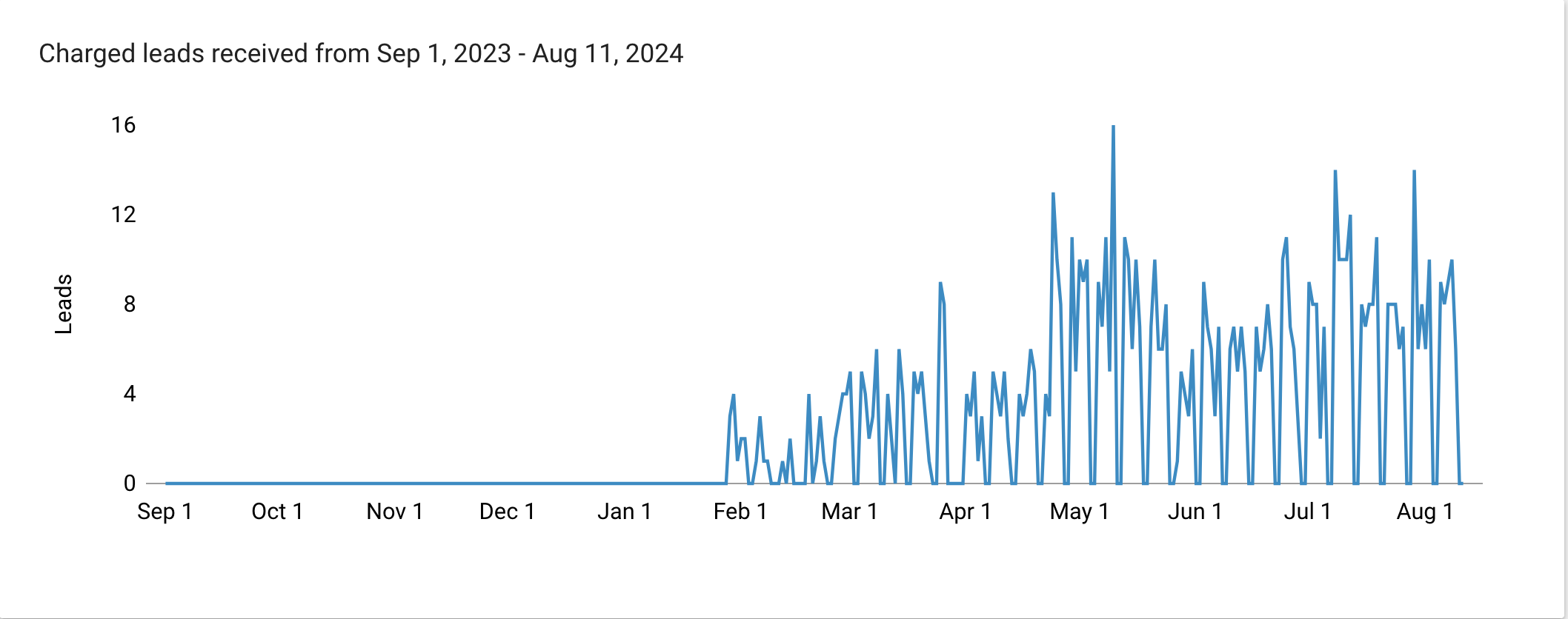
How to Revive a Failing Local Services Ads Account: Lessons from a Real-World Experience
As a roofing company, there’s nothing more frustrating than investing time and money into a Local Services Ads (LSA) account, only to see it fail to deliver any leads. It’s a feeling of helplessness—watching your account gain impressions without generating a single call, and wondering if all your efforts are in vain.
This is exactly what happened with a roofing company I worked with in Portland and Vancouver. Despite setting up their LSA account just like I had for other successful clients, the leads weren’t coming in. Here’s what I did to turn things around and how you can, too.
While working with a new roofing company in Portland & Vancouver, I faced an unexpected challenge: their LSA (Local Services Ads) account was dead in the water. Despite setting it up as I had done for countless other companies, no leads were coming in. Frustration was mounting on both sides.
Here’s the timeline:
- June 1st: We started with 88 impressions and a 100% top impression rate, but the account was never ranking number one. No leads came in.
- July: Still no leads, and while the impression rate remained high, the account continued to fail to secure the top spot.
- August: Finally, a breakthrough. By the 5th of the month, the client received their first lead at a relatively low cost. We had 65 impressions, with a 41% absolute top impression rate.
So, what changed?
I took several key steps to optimize the account:
- Increased Budget: Initially, the budget was set at $1,000. I increased it to $3,000 to improve visibility.
- Constant GBP Updates: I made regular updates to the Google Business Profile (GBP). This included adding photos, ensuring the business hours were accurate, and embedding the GBP on the client’s website.
- Engagement: I actively engaged with the account by asking and answering questions, utilizing insights from a “People Also Ask” interview with one of their technicians.
- Linked Social Media: I connected all relevant social media profiles to the GBP.
- Manual Monitoring and Management: I kept a close eye on the account, marking leads as booked immediately and ensuring nothing was stuck in the active tab. This is crucial because unresolved leads can clog the system and slow down performance.
Despite initial setbacks, persistence paid off. The key takeaway is that even if your LSA account isn’t performing right away, continuous updates, engagement, and patience are critical. Don’t be discouraged; with time and consistent effort, results will follow.
If you need help with optimizing Local Service Ads for your local service business, feel free to reach out! My name is Will, and I run an agency that helps local service businesses called LocalSink. I’m here to help you navigate these challenges and achieve success.
Alternatively, check out our FREE Guide: Optimize your Local Service Ads for Local Home Service Businesses.
How to Embed GBP Map on Website Location Service Page
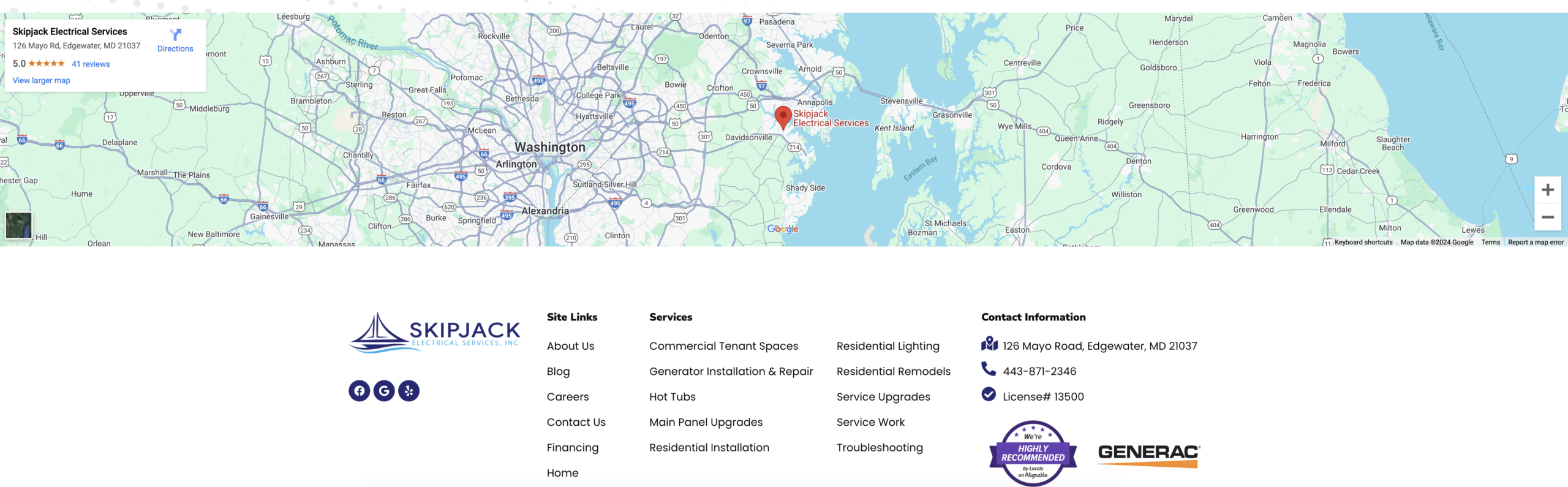
For local service businesses, enhancing your online presence is crucial to attracting more customers. One effective way to boost your local SEO is by embedding a Google Business Profile (GBP) map on your website.
This simple step not only helps customers find your location easily but also strengthens the connection between your website and your Google Business Profile in the eyes of search engines.
Here’s a step-by-step guide on how to embed a Google Business Profile map on your website and why it’s beneficial for local SEO.
Why Embedding a Google Business Profile Map is Important for Local SEO
Embedding a map from your GBP on your website has several benefits that contribute to better local SEO:
- Improves Local Search Visibility: When Google sees that your website and GBP are interconnected, it reinforces your business’s relevance for local search queries. This can help improve your ranking in local search results.
- Enhances User Experience: A map on your website makes it easier for potential customers to find your location. This convenience can increase the likelihood of visits and improve overall customer satisfaction.
- Builds Trust: Embedding a map from a trusted source like Google can lend credibility to your website. It shows that your business is legitimate and easy to locate.
- Increases Engagement: Maps are interactive elements that encourage users to engage with your website. The more users interact with your site, the better it signals to search engines that your site is valuable and relevant.
Step-by-Step Guide to Embedding a Google Business Profile Map on Your Website
Follow these steps to embed a map from your Google Business Profile onto your website:
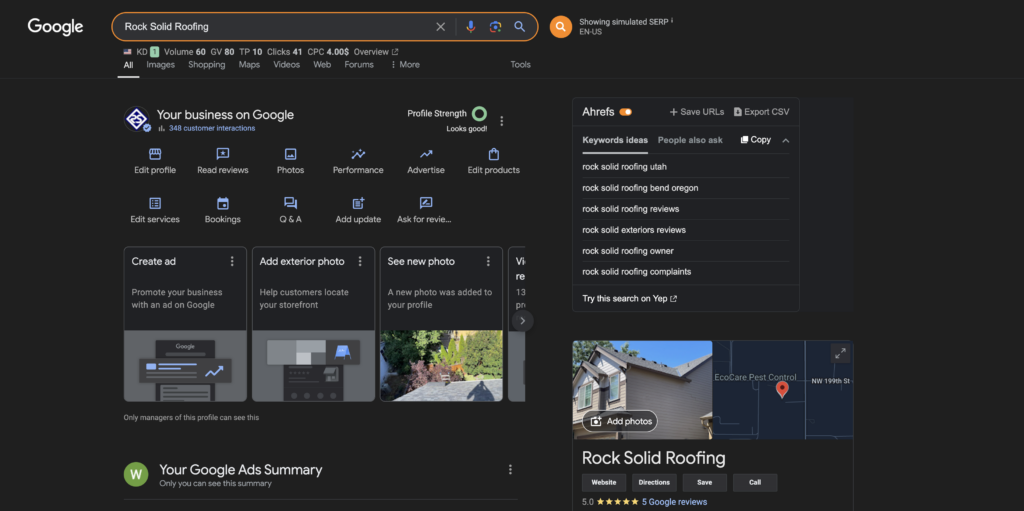
Find Your Google Business Profile on Google Maps:
- Start by searching for your business on Google Maps. You can do this by entering your business name in the search bar. Make sure your Google Business Profile is fully optimized and verified, as this ensures all information is accurate.
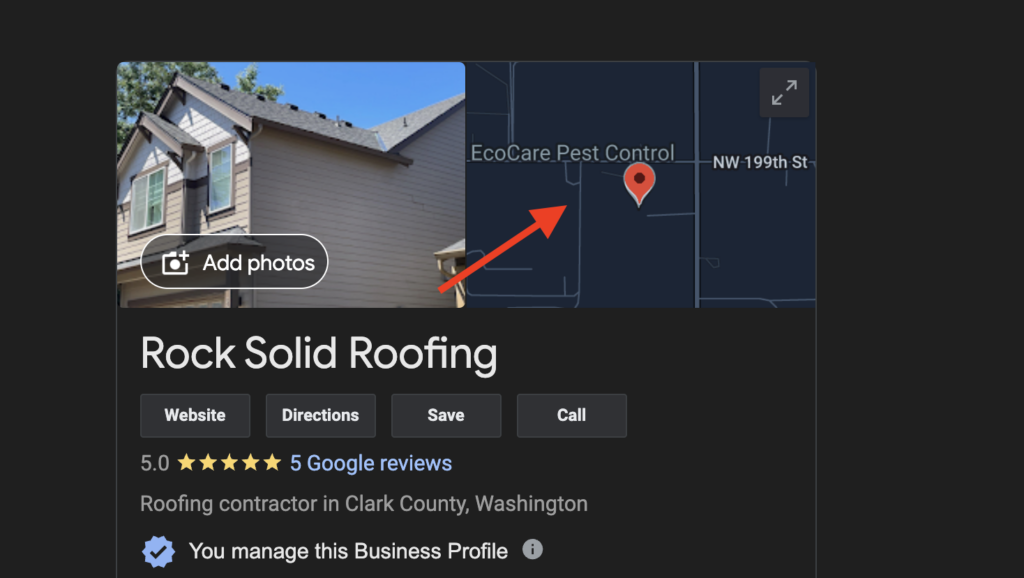
Open the Location Details:
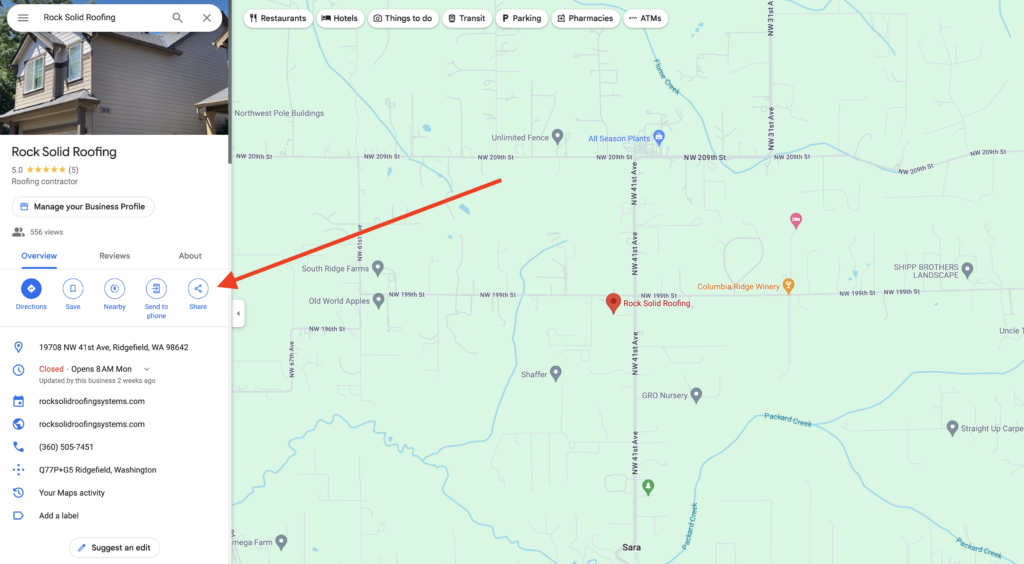
- Once your business appears on the map, click on your business name or location marker to open the detailed information panel on the left-hand side of the screen.
Access the Share Options:
- In the information panel, you’ll see a “Share” button. Click on this button to open a pop-up window with sharing options.
Select the “Embed a Map” Tab:
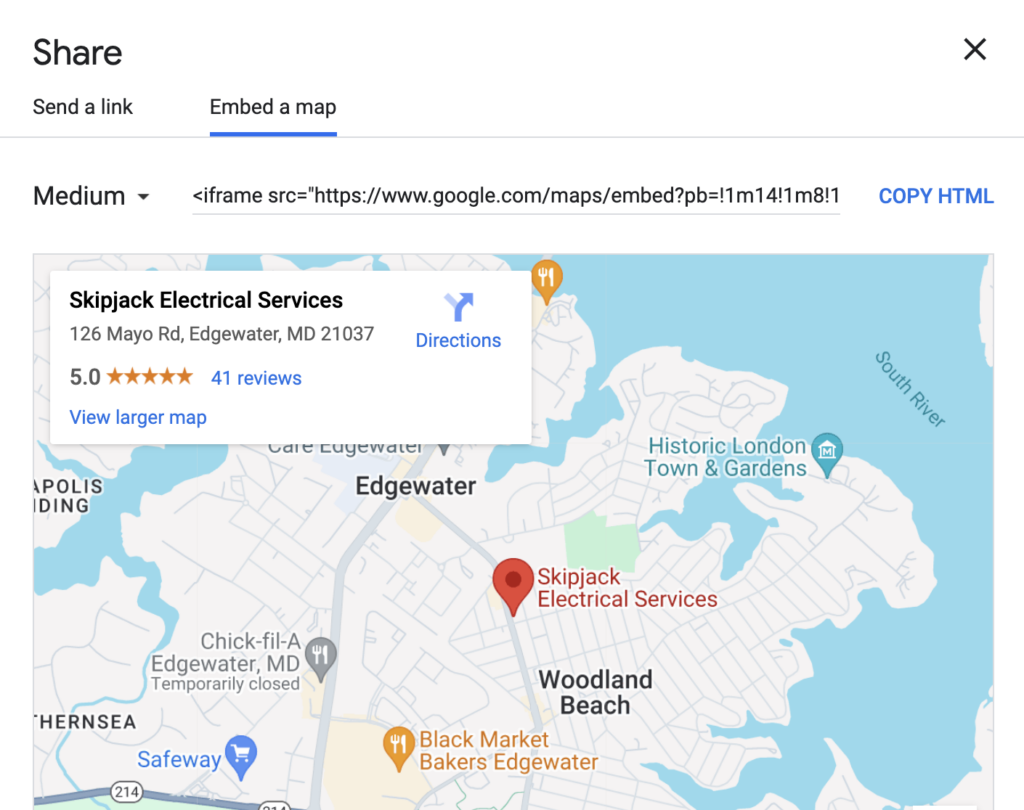
- In the sharing options window, switch to the “Embed a Map” tab. This will display a preview of your map along with an HTML code.
Choose the Map Size:
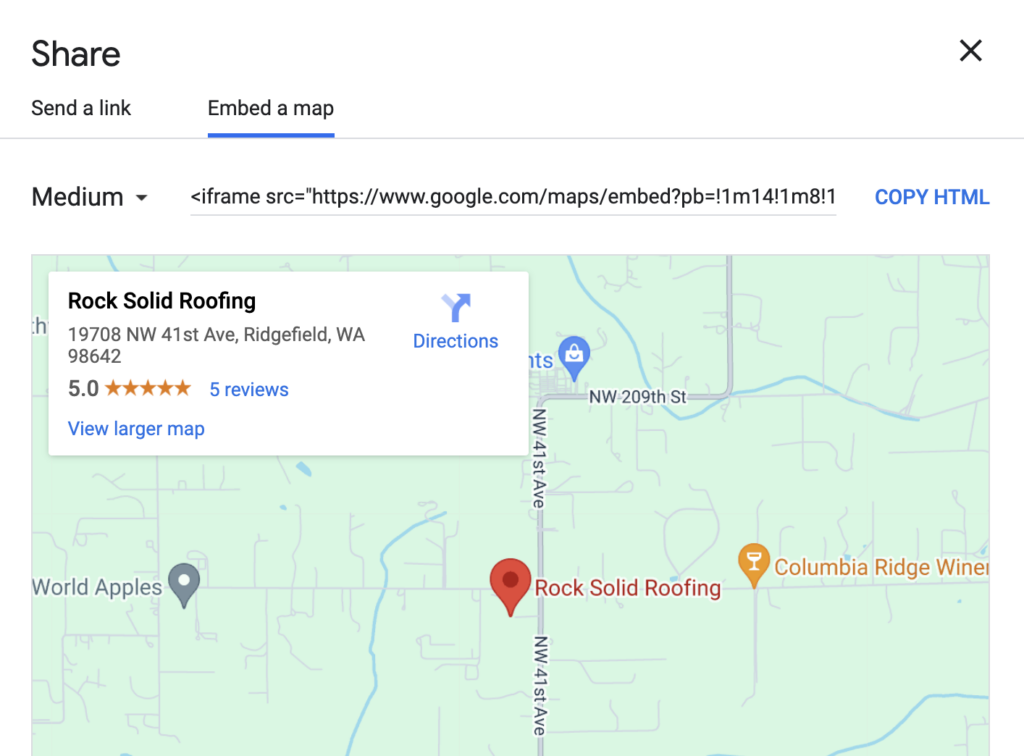
- Before copying the code, you can adjust the size of the map by selecting the drop-down menu that typically defaults to “Medium.” Choose from “Small,” “Medium,” “Large,” or “Custom size” depending on your website’s layout and design preferences.
Copy the HTML Code:
- Once you’ve selected the appropriate size, click the “Copy HTML” button. This code is what you will paste into your website’s HTML to embed the map.
Paste the Code into Your Website:
- Navigate to your website’s content management system (CMS) or HTML editor. Choose the page where you want to embed the map—typically, this would be your contact page or homepage.
- Find the spot in the HTML where you want the map to appear and paste the copied HTML code. Make sure to save and publish your changes.
Verify the Embedded Map:
- After embedding the map, visit the live version of your website to ensure the map appears correctly and is fully functional. Check that the location is accurate and that users can interact with the map.
Tips for Optimizing Your Embedded Map for SEO
- Include Relevant Keywords: When embedding the map, ensure the surrounding content is optimized with relevant local keywords. This can include phrases like “electrician in [city]” or “plumber near [neighborhood]”.
- Keep Your NAP Consistent: Ensure that your Name, Address, and Phone number (NAP) on your website matches exactly with what’s on your Google Business Profile. Consistency is key for local SEO.
- Link to Your Google Business Profile: If possible, include a direct link to your Google Business Profile within your website. This can further strengthen the connection between your site and your GBP.
- Update Regularly: If your business moves or any contact details change, be sure to update your GBP and the embedded map on your website to reflect these changes.
By embedding a Google Business Profile map on your website, you not only provide a better user experience but also enhance your local SEO efforts. This simple yet effective strategy can help your local service business stand out in search results and attract more customers from your area.
Do you need help with your GBP? Reach out to see if we can help you optimize your local home service business Google Business Profile!