
Category: Local SEO Tutorials
How to Get Your Google Business Profile Review Link
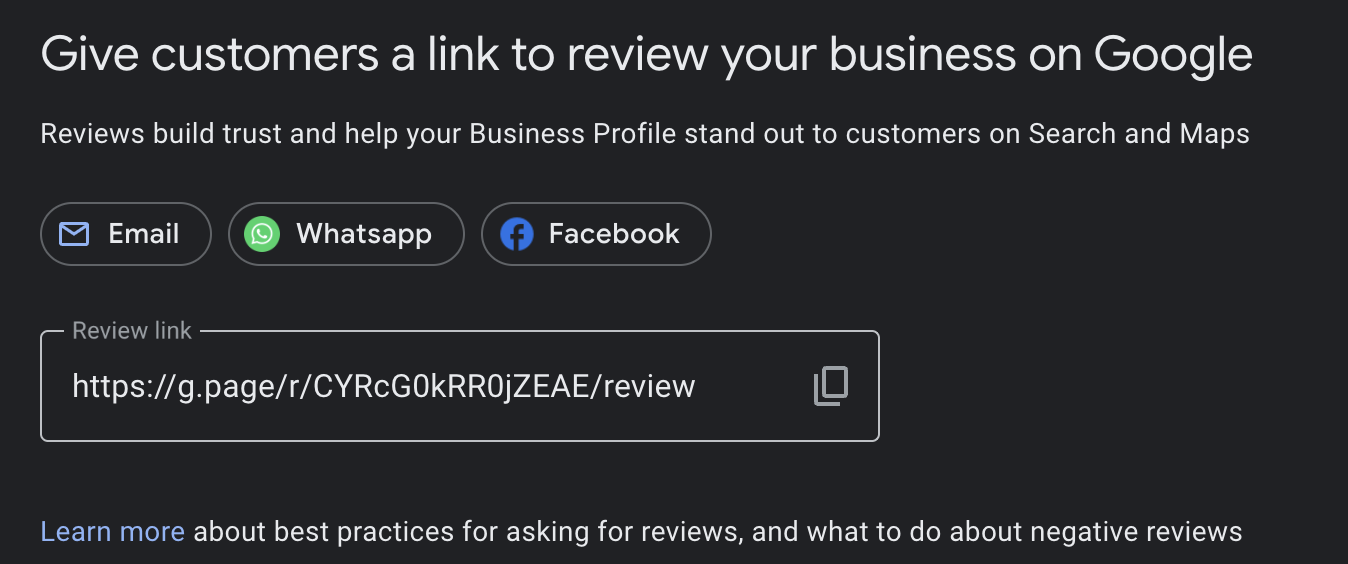
How to Get Your Google Business Profile Review Link is an essential step for any local home-service business looking to improve customer engagement and boost online credibility. In this comprehensive guide, we’ll walk through exactly how to find and share your review link, along with tips and best practices for encouraging more reviews and making the most of your Google Business Profile presence. Whether you’re planning to generate QR codes or simply want to send the link directly to happy customers, following these steps will help you streamline the review-gathering process.
Why Your Google Business Profile Review Link Matters
Customer reviews can strongly influence your reputation in the local marketplace. When prospective clients search online for services, they often glance at how many reviews you have, along with your average star rating. Making it as easy as possible for customers to leave feedback is a sure way to amplify the quality, quantity, and variety of your reviews.
Enhances Credibility and Trust
A direct review link removes any friction for clients who are ready to share their feedback. Instead of requiring them to look up your business, find the right listing, and click the review button, you provide a single click that leads them straight to where they can write their comments. This streamlined approach encourages more people to share their experiences, boosting your overall review count and credibility.
Improves Local SEO
Search engines, especially Google, use review signals—like frequency, quality, and quantity—to decide how prominently to list a local business. The more reviews you have (and the more positive they are), the better your chances of appearing at the top of relevant local searches. A direct review link can help increase the volume of reviews, indirectly improving your local search rankings.
Saves Time for Both You and Your Customers
Typing instructions or explaining how someone can leave a review takes valuable time, and is prone to errors or confusion. Providing a direct link solves that problem. Customers appreciate simplicity, and you’ll benefit from a faster way to gather valuable feedback.
Step-by-Step Guide to Getting Your Google Business Profile Review Link
Below is a simple walkthrough based on the process shown in the video, with added details to ensure you don’t miss any steps.
- Sign in to Your Google Business Profile
- Go to Google and type “Google Business Profile” in the search bar.
- Click on the link that says “Google Business Profile” or “Manage now.”
- Make sure you sign in with the Gmail account that has admin access to your Google Business Profile. If you’re not logged in, you’ll be prompted to do so.
- Select the Appropriate Business
- If you have multiple businesses under the same Google account, you may see a list of profiles.
- Choose the specific business for which you’d like to retrieve the review link.
- Access the “Ask for Reviews” Section
- Once you’re in your Google Business Profile dashboard, look for a button or tab that says “Ask for reviews.” Sometimes, you may see a “Get more reviews” prompt or an icon that opens a shareable review link.
- Click on this option, and Google will generate your unique link.
- Copy the Link
- A pop-up or a separate section will display your direct Google review link.
- Select “Copy” to place it on your clipboard.
- Share the Link
- You can now paste this link in an email, a text message, a social media post, or anywhere else you’d like to gather reviews.
- Google may also present quick-share buttons, such as for WhatsApp, Facebook, or Email, making it even easier to send your link directly.
Creating a QR Code
One of the clever uses for your Google Business Profile review link is generating a QR code. You can place that QR code on business cards, flyers, brochures, or even in-store signage, so all your customers have to do is scan it with their smartphones to be taken directly to your Google review form.
- Generate a QR Code: You can find various free QR code generators online. Simply paste your review link into the generator, download the resulting image, and incorporate it wherever you like.
Tips for Sending the Link to Your Customers
- Personalize Your Request: Rather than sending a generic “Please review us” message, try personalizing your note. Mention the customer by name (if appropriate) and reference the specific service they purchased or enjoyed.
- Offer Guidance: Some customers may not be familiar with leaving Google reviews. Provide a brief note along the lines of, “Click the link, select the star rating, and share any details about your experience.”
- Time It Well: Send review requests shortly after a successful service or transaction, when satisfaction levels are usually highest. This approach increases the likelihood of getting a positive review.
Maximizing the Impact of Your Review Link
Simply having a direct link to your Google reviews isn’t enough—you also need to harness best practices to encourage customers to actually use it. Below are some strategies to make the most of your new link.
Place It in Your Email Signature
By putting the review link in your email signature, you subtly encourage contacts to think about leaving a review after every interaction. Whenever you communicate with existing or potential customers, they’ll see the invitation to rate your business without feeling pressured or inconvenienced.
Leverage Social Media
Social platforms are an excellent resource for gathering reviews. A short post, paired with your direct review link, can reach a wide audience, especially if you’ve built up an active Facebook, Instagram, or LinkedIn community. You can even pin a post with the link at the top of your social feed, ensuring it’s the first thing visitors see.
Send Follow-Up Messages
After a service call or product sale, consider sending a polite follow-up message. If customers reply that they were happy with their experience, share your review link. If they mention problems, resolve those issues first to ensure they’re satisfied, and then you can invite them to leave a review later.
Reward Customer Feedback
While you can’t pay people to leave reviews or offer discounts in exchange (as this violates Google’s guidelines), you can express genuine appreciation for their time and effort. A heartfelt thank you goes a long way and helps nurture an ongoing relationship with the customer.
Frequently Asked Questions About Google Business Profile Review Links
Do I Need a Verified Google Business Profile to Get a Review Link?
Yes, you must have a verified Google Business Profile to manage it and retrieve the review link. Verifying usually involves receiving a postcard at your business address or using other verification methods provided by Google.
Can I Customize My Review Link?
Unfortunately, Google doesn’t allow you to change the actual URL. However, you can shorten it using a reputable URL shortener. This is optional but might make the link more visually appealing or easier to fit on certain promotional materials.
Will My Review Link Ever Change?
In most cases, your review link remains consistent. If you make drastic changes to your Google Business Profile (like renaming your business, moving locations, or transferring ownership), it’s a good idea to re-check the link to ensure it still functions properly.
Is It Safe to Post My Review Link Publicly?
Generally, yes. The link directs people to your public business listing. However, keep in mind that anyone with the link can leave a review, so be prepared for all forms of feedback—both positive and negative.
How Many Reviews Can I Get Through This Link?
There’s no set limit on the number of reviews a business can receive. As long as customers use the link and have a Google account, they can post feedback. The real challenge is ensuring you consistently provide excellent service that encourages glowing reviews.
Common Mistakes to Avoid
Not Using the Right Account
Make sure you’re signing in to the Gmail associated with your Google Business Profile. If you log in with another account, you may not see the correct dashboard or might not have permission to manage your profile.
Neglecting to Prompt Customers
If you simply generate your review link and never share it, you won’t see results. Consistently remind customers—politely, of course—that their feedback is valuable to you.
Sending the Link Too Soon or Too Late
Timing matters. Don’t ask for a review before the customer has experienced your product or service. Likewise, don’t wait so long that their experience becomes a distant memory. The sweet spot is generally a day or two after successful completion of the service.
Ignoring Negative Feedback
Some businesses only focus on collecting positive reviews. However, negative reviews can be an opportunity to learn and improve. Respond promptly, and if possible, offer to resolve the issue. A transparent approach to criticism helps show prospective customers you care about quality and customer satisfaction.
Spamming Customers
While follow-ups are good, bombarding customers with constant reminders can backfire. If a client chooses not to leave a review after one or two nudges, respect their decision. Over-promotion might lead to annoyance or even negative feedback out of frustration.
Best Practices for Leveraging the Review Link
Display It Everywhere (Thoughtfully)
Add your Google review link to invoices, email newsletters, digital receipts, or any other customer touchpoints. Just be mindful not to overwhelm or irritate potential reviewers.
Train Your Team
If you have employees who interact with customers, train them on how to guide clients to leave reviews. They can mention the review link or show them how to scan the QR code. This ensures a seamless experience for the customer.
Combine It with Other Review Strategies
Your Google Business Profile might be the primary platform for collecting reviews, but consider other spaces like industry-specific directories. Cross-promote your review links to diversify your feedback sources. Having more than one review platform can strengthen your online reputation and allow different audiences to share their opinions.
Monitor and Respond
When people do start leaving reviews, take the time to check them and respond—especially if they mention specific staff members or unique services. Even a simple “Thank you for sharing your feedback!” can make a customer feel appreciated. If someone leaves a negative comment, address it respectfully, offering a way to resolve their concerns.
How to Use Your Review Link to Generate a QR Code
As mentioned, turning your Google review link into a QR code is an effective way to encourage feedback in face-to-face interactions or at events. Here’s a quick breakdown:
- Find a Reputable QR Code Generator: There are numerous free and paid tools online.
- Paste Your Review Link: Look for a field where you can input a URL.
- Customize the QR Code (If Desired): Some tools let you change colors, shapes, or add a logo.
- Download and Test: Download the QR code, then scan it with your smartphone to verify it points to your Google review page.
- Print and Display: Add the QR code to signs, brochures, or business cards.
Why Positive Reviews Are Crucial for Home-Service Businesses
Local home-service businesses, such as plumbers, landscapers, electricians, and cleaners, thrive on positive word-of-mouth. Online reviews are an extension of that principle. Satisfied customers can become your ambassadors, sharing their experiences with neighbors, friends, or online communities. Here’s what strong reviews can do for you:
- Increase conversion rates: Potential clients are more likely to choose you if they see numerous glowing testimonials.
- Build loyalty: People who leave positive reviews tend to feel more connected to your business and may become repeat customers.
- Provide constructive feedback: Even neutral or negative reviews can spotlight areas of improvement, allowing you to adapt your services for greater success in the future.
Final Thoughts
Getting your Google Business Profile review link is just the beginning. The real benefits come from consistently sharing it, encouraging happy customers to leave feedback, and responding thoughtfully to all reviews. In today’s digital age, these positive reflections of your business serve as powerful endorsements that can persuade prospects to choose you over competitors.
Remember, the entire process revolves around transparency and convenience: you’re making it as easy as possible for customers to share genuine opinions. When managed properly, customer reviews can be one of your most valuable marketing tools, driving referrals, improving local SEO, and shaping a strong online presence.
How to Delete Google Reviews (Easiest Method 2025)
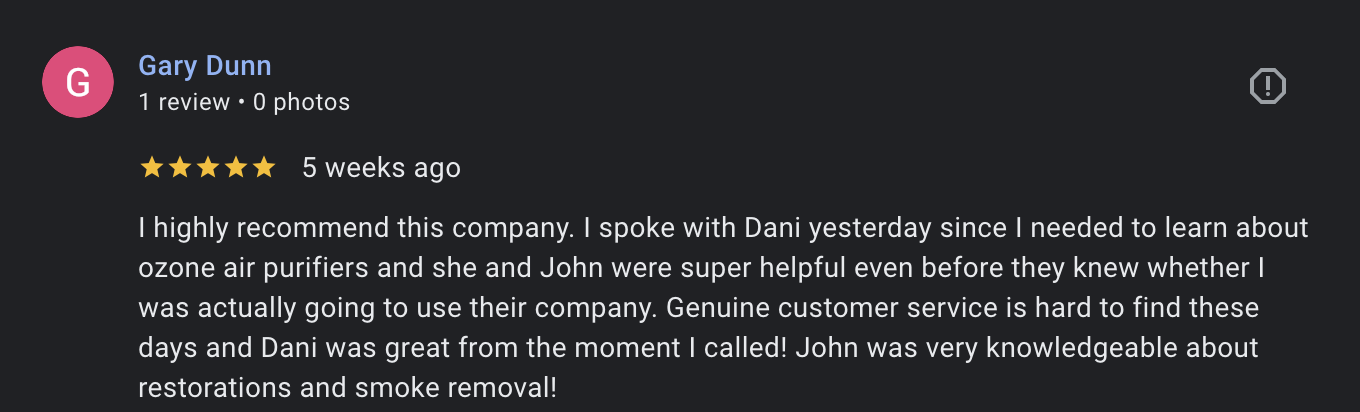
If you’ve ever wondered how to delete reviews on google, you’re definitely not alone. Whether you’re a business owner hoping to remove an irrelevant or offensive review from your Google Business Profile, or an individual looking to delete a review you personally wrote, there are a few steps you need to know to make the process as smooth as possible. In the “How to Delete Google Reviews” video, you learn that Google has specific guidelines in place to ensure transparency and fairness. Below, we’ll walk through those guidelines in detail, discuss best practices, and show you exactly how to get unwanted reviews removed or edited.
Why Deleting Google Reviews Matters
Google reviews significantly impact a business’s online reputation. Potential customers often base their decisions on the overall rating and tone of reviews. Meanwhile, incorrect, inappropriate, or misleading reviews can hurt brand perception. On the other hand, if you’ve written a review and later decide it no longer represents your feelings or the situation has changed, you might want to delete or edit it. Understanding how to delete reviews on google—whether they are on your own profile or someone else’s—is a critical skill for maintaining a fair and accurate online presence.
What the Video Covers
In the referenced video, there are two primary scenarios:
- Deleting or requesting the deletion of a review on your own Google Business Profile.
- Deleting a review you wrote on someone else’s profile.
Google handles each situation differently to protect both businesses and reviewers. Let’s dive into the details.
Part 1: Deleting Reviews on Your Own Google Business Profile
Understanding Google’s Policies
Google values transparency, so it doesn’t allow business owners to simply remove reviews they dislike. Instead, Google has a “Report a Problem” or “Flag” feature. Once a review is flagged, Google reviews the report to determine if it violates any policies—such as spam, off-topic, hate speech, or harassment. If Google agrees the content breaks its guidelines, it may remove it.
Step-by-Step Process
- Open Your Google Business Profile
- Go to Google Maps or search for your business name on Google to locate your profile.
- Click on your star rating or the link that shows the number of reviews to open the reviews section.
- Select the Review to Report
- Scroll through your list of reviews to find the one you want to delete.
- You can’t delete it outright, but you can flag it for Google’s attention.
- Click on the Three Dots or Flag Icon
- Depending on your browser or device, look for an icon (often three vertical dots) next to the review.
- Choose “Report review” or a similar option.
- Choose a Reason
- Google provides several reasons for flagging a review, such as:
- Off-topic (irrelevant to your business)
- Spam (fake or promotional content)
- Conflict of interest (e.g., you believe it was left by a competitor)
- Bullying/harassment
- Hate speech
- Profanity
- Personal information
- Pick the most accurate reason for your situation. If the review truly violates Google’s policies (for example, it’s off-topic or spam), Google is more likely to remove it.
- Google provides several reasons for flagging a review, such as:
- Submit the Report
- After selecting the appropriate reason, hit “Submit” or “Send report.”
- The review is then flagged and sent to Google for evaluation.
- Ask Others to Report if Appropriate
- In the video, there’s an example of a client who accidentally left a review on the wrong profile.
- If a review is clearly a mistake or violates guidelines, you can ask a few people (like colleagues or the individual who posted it by mistake) to also report it. Multiple reports might help Google act faster.
What Happens Next
Google will review the flagged content and make a decision. This can happen within a few days or sometimes take a bit longer. If Google finds that the review violates its policies, it will remove the review from your profile. If not, you might need to explore other options, such as politely asking the reviewer to edit or remove it themselves.
Potential Outcomes
- Review Removed: If the review is found to violate policy, it gets removed.
- Review Rejected: If Google decides it doesn’t break any rules, it stays visible.
- Wait Time: There can be a delay before you hear back. Check your review list periodically or look for a notification in your Google Business Profile.
Part 2: Deleting a Review You’ve Written
Sometimes you might want to delete or edit a review you left on another business’s profile. Perhaps your opinion changed, you made an error in the review, or the issue you complained about was resolved.
Step-by-Step Process
- Open Google Maps or Google Search
- Make sure you’re signed in to the same Google account you used to write the original review.
- Go to “Your Contributions”
- On desktop, click the menu (the three horizontal bars or your profile picture) in the top-left corner of Google Maps.
- On mobile, tap your profile icon or the “Your contributions” option depending on the interface.
- Look for a tab or link labeled “Reviews.” This should show all reviews you’ve written.
- Locate the Review You Want to Remove
- Scan through your list of reviews until you find the one you’d like to modify or delete.
- Edit or Delete
- Click or tap the three dots near the review and select “Edit review,” “Delete review,” or “Add photo.”
- Edit review: Change the star rating, text, or photos.
- Delete review: Completely remove your review from Google’s platform. Once removed, it disappears from the business’s listing.
- Add photo: If you just want to supplement or update your existing feedback with images.
Important Considerations
- Permanent Deletion: Once you delete your review, you can’t recover it. If you think you might want it back or updated later, consider editing instead of outright deletion.
- Time Lag: In some cases, it may take a few minutes or even a few hours for the deletion to reflect. Refresh the page or check back later.
Handling Common Issues
Review Doesn’t Violate Policy but Is Unfair
What if a review seems inaccurate or misleading but doesn’t break Google’s guidelines? You might not be able to get it removed, but you can:
- Respond Politely: Acknowledge the reviewer’s concerns in a polite, professional tone.
- Offer Solutions: If you run a business, invite the reviewer to contact you offline to discuss a resolution.
- Encourage Positive Reviews: Ask satisfied customers to leave reviews to balance out negative feedback.
Someone Left a Review by Mistake
If a client or customer confuses your business with another, you can:
- Flag the Review: As shown in the video, choose the “Off-topic” reason if it’s unrelated to your business.
- Contact the Reviewer: Politely request that they delete or edit their mistaken review. Often people are unaware they reviewed the wrong place.
Multiple or Duplicate Reviews
Google generally allows only one review per Google account per business location. If you see duplicates:
- Flag the Duplicates: Choose the spam or off-topic reasons for any duplicate posts.
- Contact Support: If the duplicates remain, you can try contacting Google My Business support for further assistance.
Additional Tips for Managing Google Reviews
Encourage Genuine Reviews
One of the best ways to mitigate the impact of negative or irrelevant reviews is to have a steady stream of legitimate positive feedback. Encourage happy customers to share their experience. This pushes down potentially harmful content and showcases a more balanced overall rating.
Monitor Reviews Regularly
Regularly checking your reviews allows you to quickly spot:
- Fraudulent or spammy posts
- Irrelevant or outdated information
- Trends in customer experiences (both positive and negative)
By catching issues early, you can address them before they have a lasting effect on your online reputation.
Provide Great Customer Service
No amount of review management will save a consistently poor product or service. Aim to exceed customer expectations so that you attract genuine positive feedback. This builds a strong foundation for any online reputation strategy.
Respond to Feedback Promptly
Whether a review is positive or negative, responding promptly can demonstrate your commitment to customer satisfaction. This approach often encourages neutral or negative reviewers to reconsider or update their reviews after their concerns are addressed.
How Reporting Works Behind the Scenes
When you flag a review for removal, Google’s algorithm and support team check for policy violations. If the review is deemed to contain spam, illegal content, or other issues, Google removes it. However, it’s crucial to note that false flags—flagging a legitimate review just because it’s negative—rarely succeed. Google typically won’t delete a post unless it clearly breaks a rule.
Frequently Asked Questions
Can I Delete a Review on My Business Profile Immediately?
Unfortunately, you can’t remove it yourself with a single click unless you wrote that review. If it’s someone else’s review, you must flag it and wait for Google’s approval. If it doesn’t violate policies, Google usually won’t remove it.
Is There a Limit to How Many Times I Can Edit My Review?
There’s no strict limit on edits. You can update your reviews as often as you’d like to reflect new information or changing opinions. However, if you repeatedly post inappropriate content, you risk violating Google’s guidelines.
How Long Does It Take for Google to Remove a Flagged Review?
There’s no official timeframe—sometimes it’s days, sometimes weeks. You can speed up the process if you have multiple users flag the review for the same valid reason, but there’s no guarantee.
Does Deleting Negative Reviews Improve My SEO?
Removing negative reviews doesn’t necessarily boost your search rankings, and might not always be possible. Google’s local algorithm factors in overall rating, review volume, and engagement. If you can’t remove a negative review, you can still respond and encourage more positive feedback from other customers.
Will Google Notify Me Once the Review Is Removed?
You typically don’t receive an explicit notification. You may notice after a few days that the offending review is gone. Check your business profile periodically to see if the flagged content is still there.
Conclusion
Knowing how to delete reviews on google can make a world of difference for both business owners and individual reviewers. Whether you’ve encountered a review that’s obviously off-topic, spammy, or hateful—or you simply need to remove one you wrote yourself—understanding the correct procedure is key. As emphasized in the “How to Delete Google Reviews” video, there isn’t a simple “delete” button for reviews on your own profile, but reporting inappropriate content with accurate reasons often leads to successful removals. For reviews you created personally, Google makes it much easier with a straightforward delete or edit function.
Staying on top of your online presence by regularly reviewing feedback, addressing concerns, and encouraging genuine positive reviews is ultimately the best approach to maintaining a strong reputation. By combining smart reporting tactics with excellent customer service, you’ll be well-equipped to handle any review—negative or positive—that comes your way.
How to Increase Google Business Profile Traffic in 2025

Increasing Google Business Profile traffic is essential for attracting more customers and improving your business’s online presence. Your Google Business Profile (GBP) is one of the most powerful tools for driving traffic to your business, both online and offline. Optimizing your profile can significantly increase visibility, attract more customers, and improve your local SEO rankings. In this comprehensive guide, we’ll cover the most effective strategies to increase Google Business Profile traffic step-by-step.
Why is Google Business Profile Optimization Important?
A well-optimized Google Business Profile ensures your business appears in local search results, Google Maps, and the Knowledge Panel. With millions of users relying on Google to find businesses daily, a properly managed profile can:
- Drive more clicks to your website.
- Increase calls and visits to your location.
- Enhance your brand’s online reputation
Claim and Verify Your Google Business Profile
If you haven’t claimed your profile yet, this is the first step:
- Go to Google Business Profile Manager.
- Search for your business name.
- Click “Claim this Business” if it’s not already claimed.
- Complete the verification process (via postcard, phone, or email).
Why Verification Matters
Verification ensures that only authorized individuals can manage your profile. Without verification, you won’t be able to make crucial updates or monitor your analytics.
Complete Every Section of Your Profile
Google favors profiles that are 100% complete. Let’s explore each section and show how to optimize it:
Business Name
Ensure that your business name matches your official name exactly. Avoid keyword stuffing or adding extra terms, as this could lead to penalties from Google.
Category
Choosing the correct primary category is one of the most important ranking factors. The primary category determines how Google understands your business and which searches your profile will appear in. For example, if you’re a plumber, choosing “Plumber” as your primary category is essential. Secondary categories can add additional relevance but should not dilute the primary focus.

Address
Your business’s physical location plays a significant role in determining visibility. Google tends to favor businesses that are closer to the user’s location during local searches. While you can’t control geography, ensuring your address is accurate and consistent across all platforms can boost your credibility. If you operate in a competitive area, consider optimizing your website for hyper-local keywords to improve relevance.
Hours of Operation
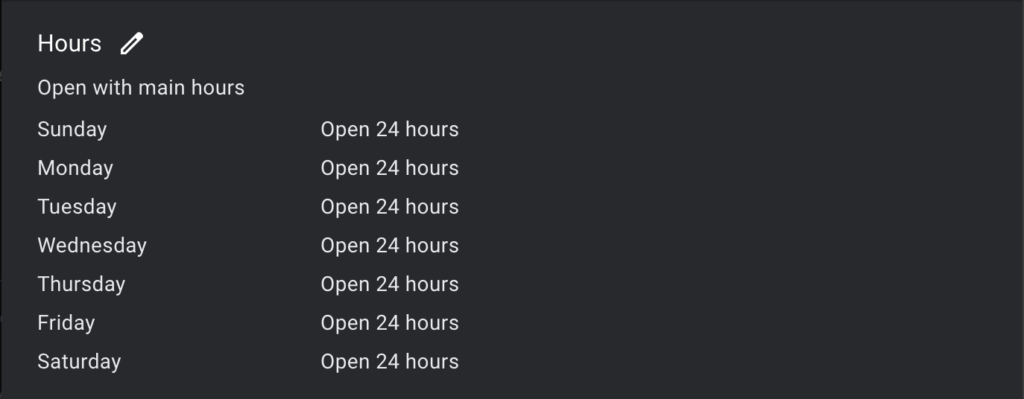
Keep your hours accurate and up to date. This includes reflecting seasonal or holiday changes. Businesses with correct hours are more likely to attract visits and avoid negative reviews from frustrated customers who find incorrect information.
Phone Number
Use a local phone number with a consistent format. Local numbers help establish trust with nearby customers and signal to Google that your business is geographically relevant.
Website
Your website is directly tied to the success of your Google Business Profile. Link to the most relevant landing page rather than your homepage if it better serves the user’s intent. For example, a restaurant might link directly to its online menu. Ensure your website is mobile-friendly, loads quickly, and includes location-specific keywords.
Description
Write a concise and keyword-rich description of your business. Highlight unique selling points, products, or services, but avoid stuffing keywords unnaturally. Google allows up to 750 characters, so make the most of this space to communicate what makes your business stand out.
Attributes
Add relevant attributes such as “wheelchair accessible,” “free Wi-Fi,” or “pet-friendly.” These details can influence customer decisions and make your profile stand out in competitive searches.

Pro Tip
Adding photos and videos to your profile is critical. High-quality images of your location, products, and team can make your profile more engaging and encourage more clicks.
Optimize for Keywords
Use keywords strategically in your profile to help it rank higher in local search results:
- Business Description: Include primary keywords naturally.
- Products and Services: Add detailed descriptions with relevant terms.
- Posts: Use keywords in updates to target specific queries.
Avoid keyword stuffing—focus on readability and relevance.
Encourage and Manage Reviews
Reviews are one of the top ranking factors for Google Business Profiles. To boost traffic:
- Ask for Reviews: Request reviews from happy customers via email, SMS, or in person.
- Respond to Reviews: Engage with both positive and negative reviews. Thank customers for their feedback and address concerns professionally.
- Report Fake Reviews: Use the “Report” feature to flag inappropriate or spammy reviews.
Pro Tip
A steady flow of recent reviews signals to Google that your business is active and relevant.
Post Regular Updates
Google Business Profile posts allow you to share:
- Promotions
- Events
- Announcements
- Product launches
How to Create a Post
- Log in to your Google Business Profile Manager.
- Click “Add Update.”
- Add text, images, and a call-to-action (CTA).
- Publish your post.
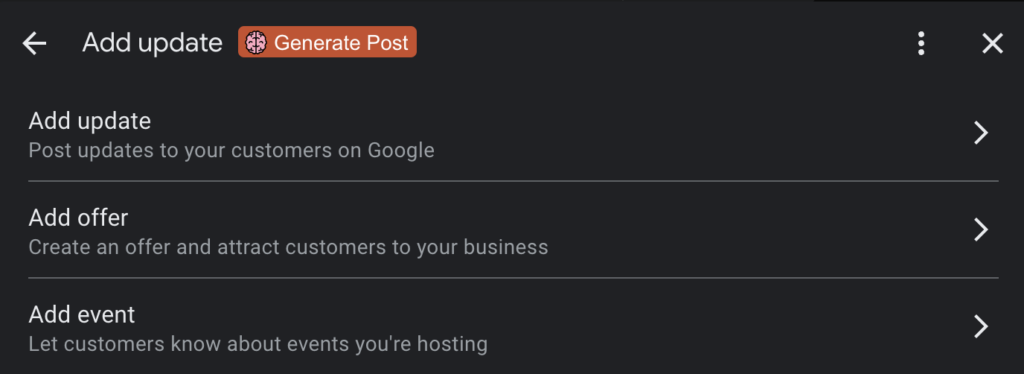
Why Posts Matter
Regular updates keep your profile fresh and engaging. Posts can also include CTAs like “Call Now,” “Learn More,” or “Visit Us.”
Add High-Quality Photos and Videos
Visual content is crucial for engagement. According to Google, businesses with photos receive 42% more requests for directions and 35% more website clicks.
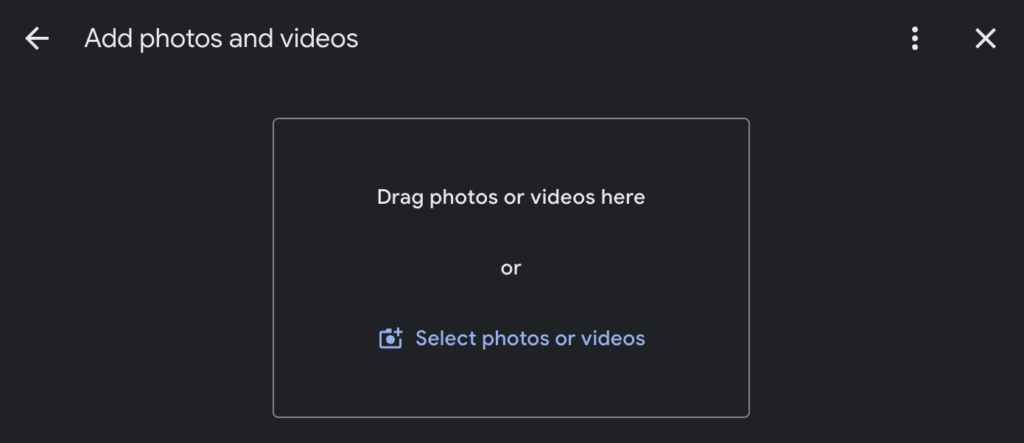
Tips for Visual Content
- Use high-resolution images.
- Showcase your products, team, or premises.
- Add short videos (under 30 seconds) highlighting services or customer testimonials.
Use the Q&A Section
The Questions and Answers (Q&A) feature allows customers to ask questions directly on your profile. Take control of this feature by:
- Adding FAQs: Preemptively answer common questions.
- Monitoring Questions: Respond promptly to new queries.
- Upvoting Helpful Answers: Highlight the most accurate information.

Leverage Insights to Improve Performance
Google Business Profile Insights provide valuable data about how users interact with your profile. Analyze metrics like:
- Search queries used to find your business.
- Customer actions (calls, website visits, direction requests).
- Photo views compared to competitors.
Actionable Steps
- Focus on top-performing keywords.
- Double down on popular photos and posts.
- Adjust your strategy based on user behavior.
Implement Local SEO Strategies
To complement your GBP efforts, improve your local SEO:
- Build Citations: Ensure your business information is consistent across directories (e.g., Yelp, Yellow Pages).
- Get Backlinks: Partner with local blogs, newspapers, or organizations for backlinks.
- Optimize Your Website: Use local keywords, create location-based pages, and ensure your site is mobile-friendly.
Google Reviews: How to Search by Name
Why Search Google Reviews by Name?
Monitoring Customer Feedback
Online reviews play a pivotal role in a business’s reputation. By searching for specific names, you can respond to individual customers or identify recurring comments. This helps you address concerns quickly and maintain strong relationships.
Reputation Management
Business owners often need to track mentions of certain team members. Searching reviews by name makes it easy to evaluate how individual employees are performing. You can spot who consistently goes above and beyond for customers—or who may need extra training or support.
Finding Relevant References
Sometimes, businesses share similar names or operate in multiple locations. By combining a business name with city details, you can ensure you’re looking at the correct listing. This step is essential if you want to be certain the reviews you find are relevant to the specific branch or location in question.
Searching Google Reviews by Name on Your Own Business Profile
When searching your own business’s reviews for a particular name, the process is fairly straightforward.
Step 1 – Access Your Business Profile
- Go to Google Maps or perform a Google search to locate your business listing.
- Click on your listing to open your Google Business Profile, where you can view the total number of reviews.
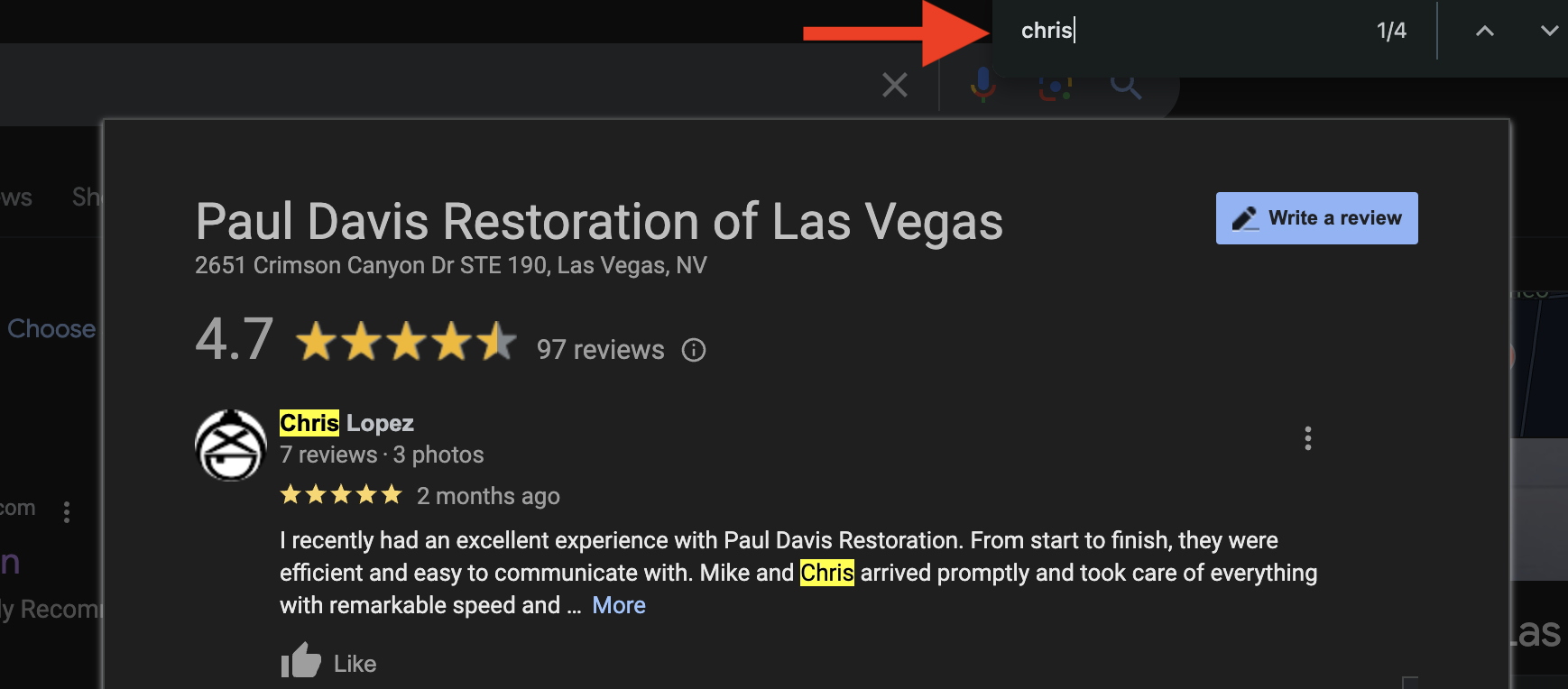
Step 2 – Use the Find Command
- On a desktop computer:
- Mac users: Press Command + F.
- Windows users: Press Control + F.
A small search bar typically appears at the top right or bottom of your browser.
- On a mobile device:
- iPhone (Safari or Chrome): Tap the share or menu icon and select “Find on Page” (or “Find in Page”).
- Android: Open your browser’s menu (often three dots) and tap “Find in page.”
Step 3 – Type the Name or Keyword
In the search bar, type the name you’re looking for—this could be a customer, employee, or product. The browser will highlight every instance of that name within your reviews.
Step 4 – Browse All Matches
Use the arrows (or other navigation icons) in the search bar to move through each mention of the name. This feature is handy if you have many reviews and need to find specific feedback quickly.
Searching Google Reviews by Name for Another Business
If you need to look for reviews on someone else’s business, you can still apply the same technique, but you’ll have to locate the correct listing first.
Step 1 – Locate Their Business on Google
- Go to Google Maps or type the business name into a regular Google search.
- If multiple listings appear, refine your query by adding a city name or neighborhood (e.g., “Astro Realty Chicago”).
- Confirm you have the correct business profile by checking details like address and phone number.
Step 2 – Open Their Reviews
Once you find the right listing, look for a link that typically says “XX Google reviews” or shows a star rating. Click on it to see the full list of reviews.
Step 3 – Use Your Browser’s “Find” Feature
As before, use Command + F (Mac) or Control + F (Windows). On mobile, select “Find on Page” or “Find in page” from the browser’s menu. Enter the name you want to locate among the reviews.
Step 4 – Navigate the Matches
Use your browser’s navigation arrows to jump from one mention to the next. This makes the process of sifting through dozens—or even hundreds—of reviews much more manageable.
Additional Tips for Google Reviews Search by Name
Tip 1 – Spell Variations and Nicknames
When searching for a particular person, consider common nickname variations. For example, you might need to search both “Jon” and “John,” or “Liz” and “Elizabeth” to find all relevant mentions.
Tip 2 – Check for Typos
Reviewers may misspell a name or word. In such cases, try partial searches (like “Lind” for Linda, Lindsey, or Lindy). This approach can sometimes uncover additional mentions you might have otherwise missed.
Tip 3 – Use Quotation Marks in Google Search
If you’re searching for a review via a general Google query (instead of going directly to the listing), putting the name in quotes (e.g., “Astro Realty Boston”) can help narrow down the results. However, this method isn’t as direct as opening the listing and using your browser’s find function.
Tip 4 – Combine Keywords with the Name
If you want to find a name paired with a specific product or service, type both in the search bar. For example, “Danny landscaping” will isolate reviews mentioning both “Danny” and “landscaping.”
Tip 5 – Encourage Customers to Use Names
If you want to highlight individual employee contributions, encourage customers to include specific staff names in their reviews. This helps with later searches and lets you recognize staff members who receive repeated praise.
Why Is This Important?
Streamlined Customer Service
Responding quickly to individual reviews fosters a sense of trust and loyalty. If a customer mentions an employee by name—whether positively or negatively—you can address the situation with immediate context.
Valuable Insights for Improvement
Seeing a repeated issue tied to a specific name or service can signal that change is needed. Conversely, consistent positive mentions can guide best practices for training and highlight areas of success.
Competitive Research
When evaluating a competitor, you might want to track how often reviewers mention certain strengths or weaknesses. This information can guide your own marketing strategy or help you understand market expectations.
Common Mistakes and How to Avoid Them
Relying Solely on Partial Names
If you’re too vague (“Li” for “Lisa” or “Lindsey”), you may miss relevant reviews. Use both full and partial names to cover all possibilities.
Not Verifying the Correct Listing
Multiple businesses often share similar names. Always double-check the address, phone number, or location details before reading through the reviews.
Forgetting Mobile Options
When you’re on the go, you can still apply the same search method by using your mobile browser’s “Find in page” function. Don’t wait until you’re back at a desktop computer to locate important feedback.
Frequently Asked Questions
Can I Search Google Reviews by Name Without Visiting the Listing Page?
While you can use a normal Google query (e.g., “John + [business name] + reviews”), it’s generally less effective than going directly to the reviews section on the listing and using your browser’s find feature.
Will This Work on Other Review Platforms?
Yes. Yelp, Facebook, TripAdvisor, and other review sites all display text on a single page. Simply open the reviews, and use the same “find on page” feature to locate names or keywords.
Does This Affect My Local SEO Ranking?
Doing a google reviews search by name won’t directly affect your local SEO. However, staying on top of your reviews and responding promptly to customers can enhance your business’s reputation, which may indirectly improve your search visibility.